
1. Select Disk 1 → “Use as Boot Device”
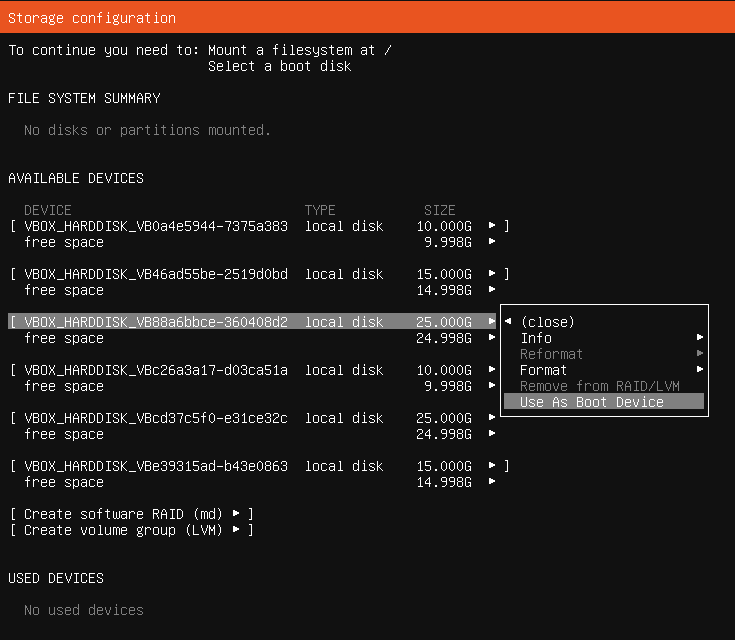
This does two things:
- Creates a 512MB FAT32 ESP on Disk 1
- Marks it as
/boot/efi - Leaves the rest of the disk empty
2. Select Disk 2 → “Add as Another Boot Device”
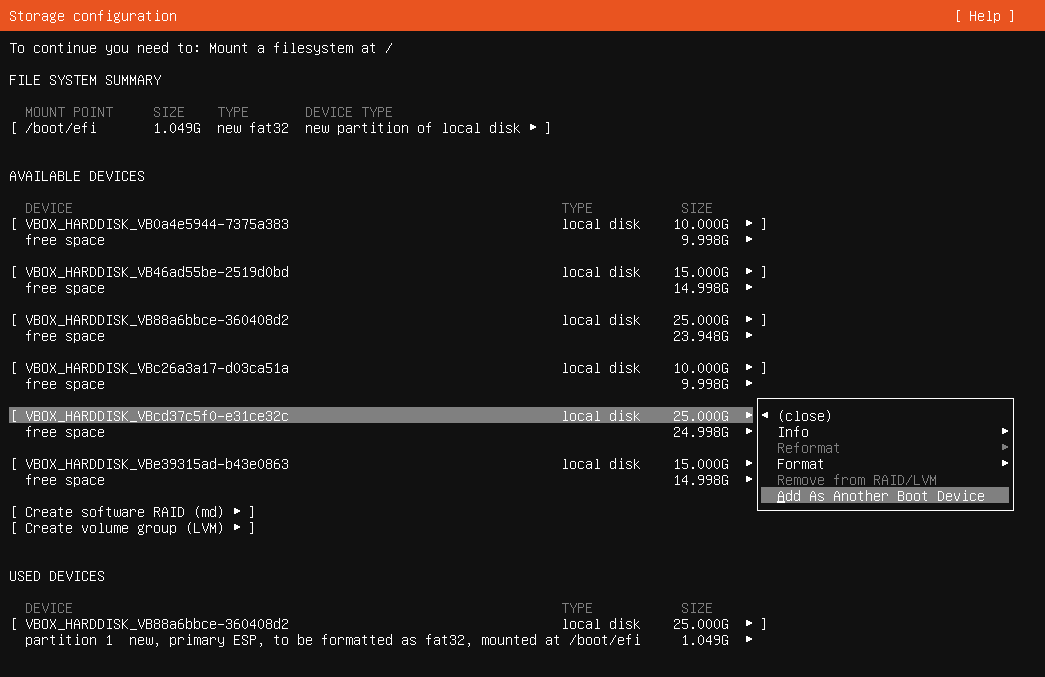
This creates:
- Another 512MB FAT32 ESP on Disk 2
- But does NOT mount it
- It is simply a backup bootloader location
👉 These ESPs ARE NOT RAIDED.
UEFI requires each disk to have its own independent ESP.
3. Create unformatted partitions on both disks
Now you create:
- Disk 1 → free space → “Create new GPT partition” → unformatted
- Disk 2 → free space → “Create new GPT partition” → unformatted
These two partitions will become your RAID‑1 members.
4. Create the software RAID (md)
Choose:
- “Create software RAID (md)”
- RAID level: RAID1
- Select the two unformatted partitions
This creates:
/dev/md0
5. Create a filesystem on md0
Inside md0:
- Select free space → “Create new GPT partition”
- Format as ext4
- Mount point:
/
This becomes your root filesystem.
🔧 Summary of what your final layout should look like
Disk 1 (sda)
- sda1 — FAT32 ESP (mounted as
/boot/efi) - sda2 — RAID member (part of md0)
Disk 2 (sdb)
- sdb1 — FAT32 ESP (NOT mounted, backup bootloader)
- sdb2 — RAID member (part of md0)
RAID device
- md0 = RAID1(sda2 + sdb2) → ext4 →
/
Verify on the Installed OS
1. Make sure the RAID array is healthy
Run:
cat /proc/mdstat
You want to see something like:
md0 : active raid1 sda2[0] sdb2[1]
      [UU]
- [UU] = both disks are in sync
- [U_] or [_U] = one disk missing or rebuilding
If it’s rebuilding, that’s normal on first boot — it will finish in the background.
You can also check detailed status:
sudo mdadm --detail /dev/md0
If you want to explore this more, you can tap check RAID health.
2. Confirm GRUB is installed on both disks
The installer usually does this automatically, but it’s worth confirming.
Run:
sudo efibootmgr -v
You should see two boot entries, one for each disk’s EFI partition.
If you only see one, install GRUB to the second disk:
sudo grub-install /dev/sdb
sudo update-grub
This ensures the system still boots if one disk dies.
If you want help verifying this, tap verify GRUB on both disks.
Optional but recommended checks
Check that both ESPs are mounted correctly
Only one ESP (usually sda1) will be mounted at /boot/efi.
The second ESP (sdb1) is normally not mounted, and that’s fine.
Enable periodic RAID checks
Ubuntu normally sets this up automatically via systemd timers.
Test failover
If you want to be absolutely sure, you can test by temporarily unplugging one disk and booting.
Boot Ubuntu to a RAID‑1 Array
1. Select Disk 1 → “Use as Boot Device”
This creates:
- A 1GB FAT32 EFI System Partition (ESP)
- Mounts it as /boot/efi
- Leaves the rest of the disk empty

2. Select Disk 2 → “Add as Another Boot Device”
This creates:
- A second 1GB FAT32 ESP
- It is NOT mounted
- It serves as a backup bootloader location

NOTE:
Only one ESP will be mounted at /boot/efi.
The installer chooses which one.
The other ESP remains unmounted as a backup.
These ESPs are NOT RAIDed.
3. Create unformatted partitions on both disks
For each disk:
- Select free space ->
Create new GPT partition-> unformatted
These will become the RAID‑1 members.
4. Create the software RAID (md)
- Choose
Create software RAID (md) - RAID level: RAID1
- Select the two unformatted partitions
This creates: /dev/md0
5. Create a filesystem on md0
Inside md0:
- Select free space →
Create new GPT partition - Format as
ext4 - Mount point:
/
NOTE:
Ubuntu creates a GPT partition table inside the RAID device.
This is why you will see md0p1 as the root filesystem.
Final Layout
Disk 1 (sda):
- sda1 — FAT32 ESP (mounted as
/boot/efiOR unmounted depending on installer choice) - sda2 — RAID member (part of
md0)
Disk 2 (sdb):
- sdb1 — FAT32 ESP (mounted as
/boot/efiOR unmounted depending on installer choice) - sdb2 — RAID member (part of
md0)
RAID device:
- md0 = RAID1(
sda2+sdb2) - md0p1 = ext4 mounted as
/
Verify After Installation
1. Check RAID health
cat /proc/mdstat
Expect:
md0 : active raid1 sda2[0] sdb2[1]
      [UU]
Detailed view:
sudo mdadm --detail /dev/md0
2. Confirm GRUB is installed on both disks
sudo efibootmgr -v
You should see two Ubuntu boot entries, one for each disk.
If only one appears:
sudo grub-install /dev/sdb
sudo update-grub
Optional Checks
- Only one ESP will be mounted at
/boot/efi— this is normal. - Ubuntu usually configures periodic RAID scrubbing automatically.
- You can test failover by temporarily disconnecting one disk.